
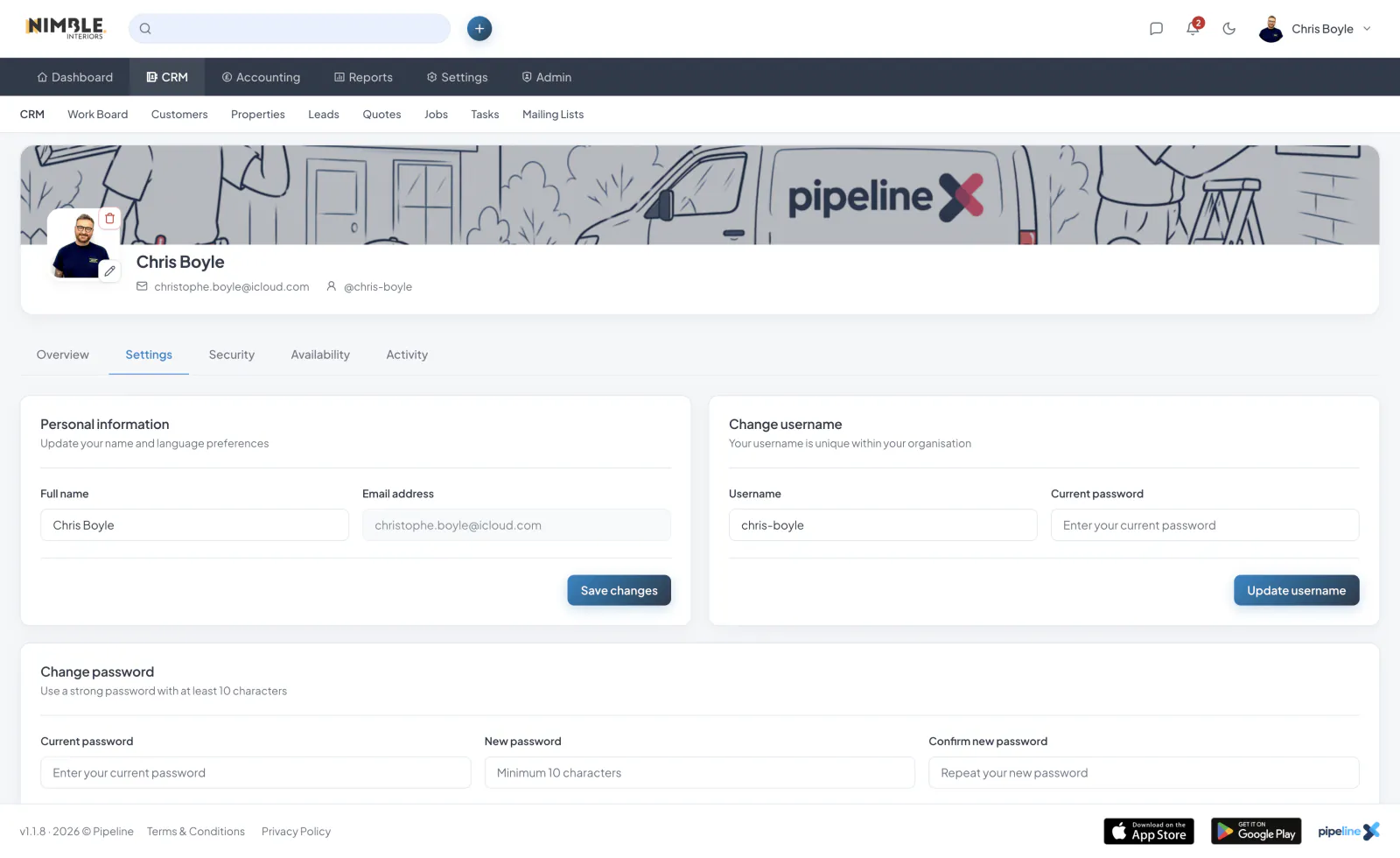
Changing Your Password
To change your password, navigate to your account security settings. You can access this through your profile menu or through the main Settings page.
Password Requirements
Your new password must meet the following requirements:
- At least 8 characters long
- Contains at least one uppercase letter
- Contains at least one lowercase letter
- Contains at least one number
- Must not be the same as your previous password
Steps to Change Your Password
- Navigate to Settings and then Security
- Enter your current password for verification
- Enter your new password
- Confirm your new password by typing it again
- Click "Update Password"
Two-Factor Authentication
For additional security, we strongly recommend enabling two-factor authentication. Once enabled, you will need to enter a code from your authenticator app each time you log in.
Forgot Your Password?
If you have forgotten your current password, log out and use the "Forgot Password" link on the login page. You will receive a verification code via email to reset your password.